Car listings
Blur plates in inventory and resale photos before posting them online.
LICENSE PLATE BLUR
Detect plates in a photo, review the selected area, and adjust the blur before applying the edit.
Blur plates in the editorPlate detection · Review the selection · Adjust blur strength
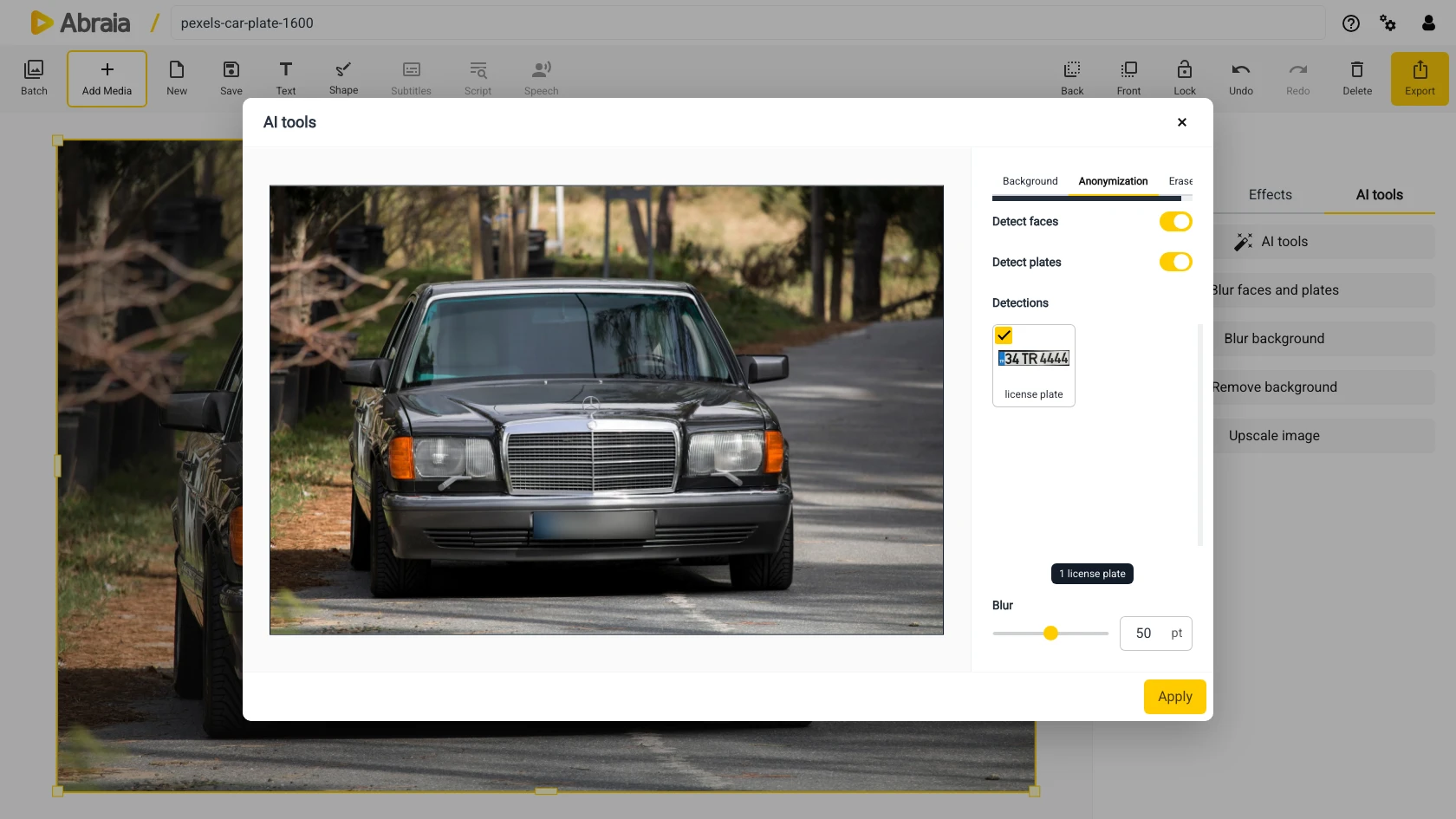
PLATE PRIVACY
Cover registration details while preserving the car, location, and rest of the scene.
Blur plates in inventory and resale photos before posting them online.
Remove readable plate details from travel, event, or everyday shots.
Review detections and choose which areas to blur before applying the result.
REVIEW THE RESULT
Detection is a starting point. Inspect the selection and the applied blur before you export.
Check that the selection covers the full registration plate and does not hide useful detail nearby.
Adjust blur strength until the characters are obscured at the image’s intended display size.
Zoom in after applying the edit, especially for angled, distant, or partly blocked plates.
Need to hide people too? Use face blur to review faces and plates in the same editor.
COMMON QUESTIONS
Yes. Turn on plate detection in the Anonymization tool, then review the detected areas.
Yes. Review each detected plate and choose which areas to include.
Yes. Adjust the blur strength before applying the edit.
This page covers still images. Use the video editor for video projects.