KARAOKE
Make every word count.
Karaoke
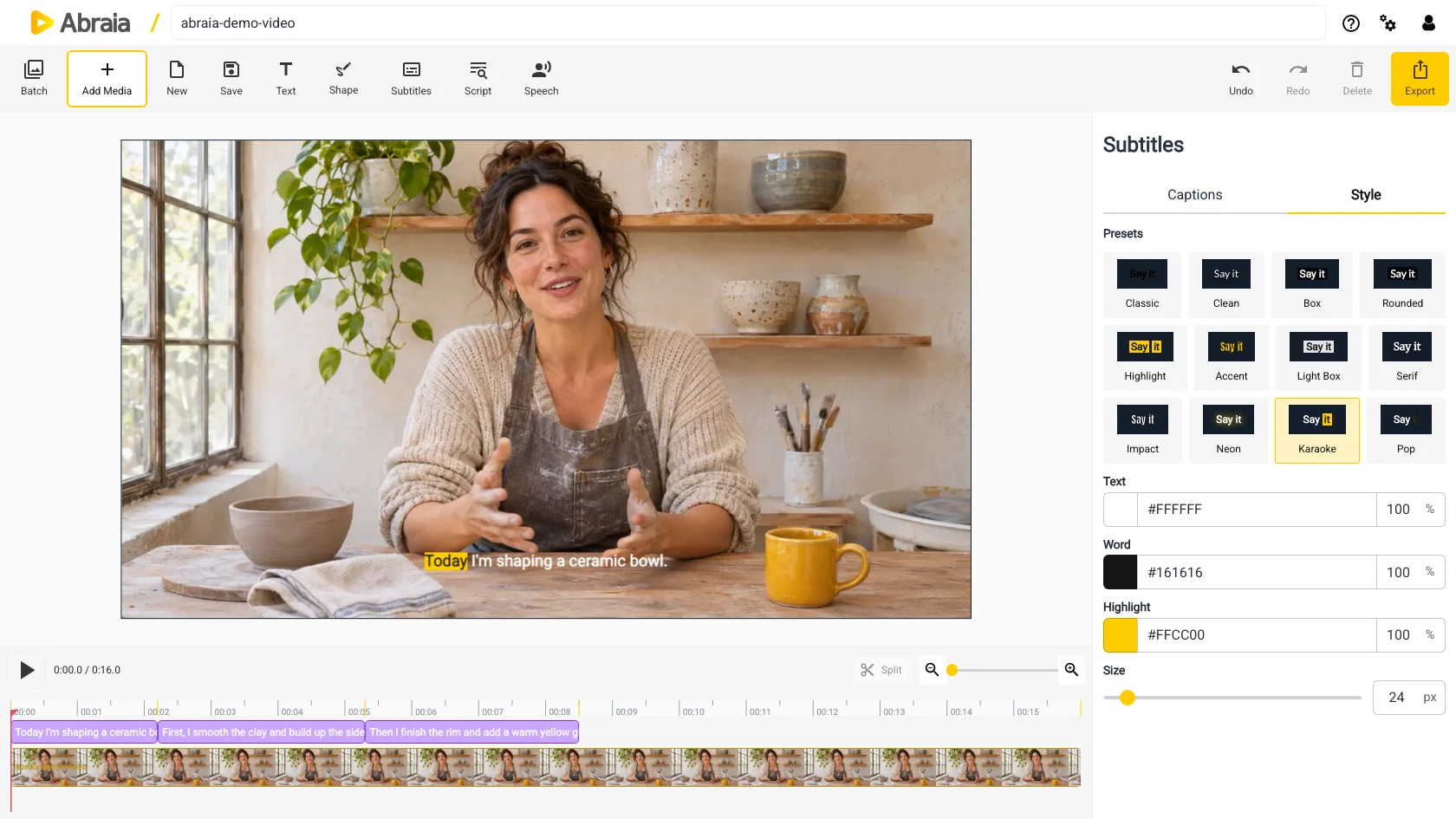
A highlight follows each spoken word through the caption.
ANIMATED VIDEO CAPTIONS
Generate subtitles from speech, correct the transcript, then use Karaoke or Pop to emphasize words as they are spoken.
Create video captionsEditable transcript · Karaoke and Pop styles · Preview on the canvas
CAPTION STYLES
Animated styles draw attention to the active word. A classic treatment keeps the full line steady.
Make every word count.
A highlight follows each spoken word through the caption.
Make every word count.
The active word changes text styling as the line is spoken.
Make every word count.
A steady caption style without word-by-word animation.
CAPTION QUALITY
Animated emphasis works best when the transcript matches the recording and the text stays clear over the footage.
Names, specialist terms, punctuation, and timing all affect how the captions follow speech. You can edit generated text in the Subtitles panel.
Size, contrast, outline, shadow, and background help text stand out. Keep captions clear of faces and important details, especially in a tight crop.
For a standard transcript, see automatic subtitles or adding subtitles. To find short excerpts, see social video clips.
COMMON QUESTIONS
Yes. Edit the transcript in the Subtitles panel before exporting.
Choose a preset, then adjust available text settings such as size, color, outline, shadow, or background.
Yes. Export the video with its captions when the preview looks right.
Karaoke highlights the active word; Pop changes its text styling.