Product catalogs
Prepare a set of product photos for larger cards and storefront layouts.
BATCH IMAGE UPSCALING
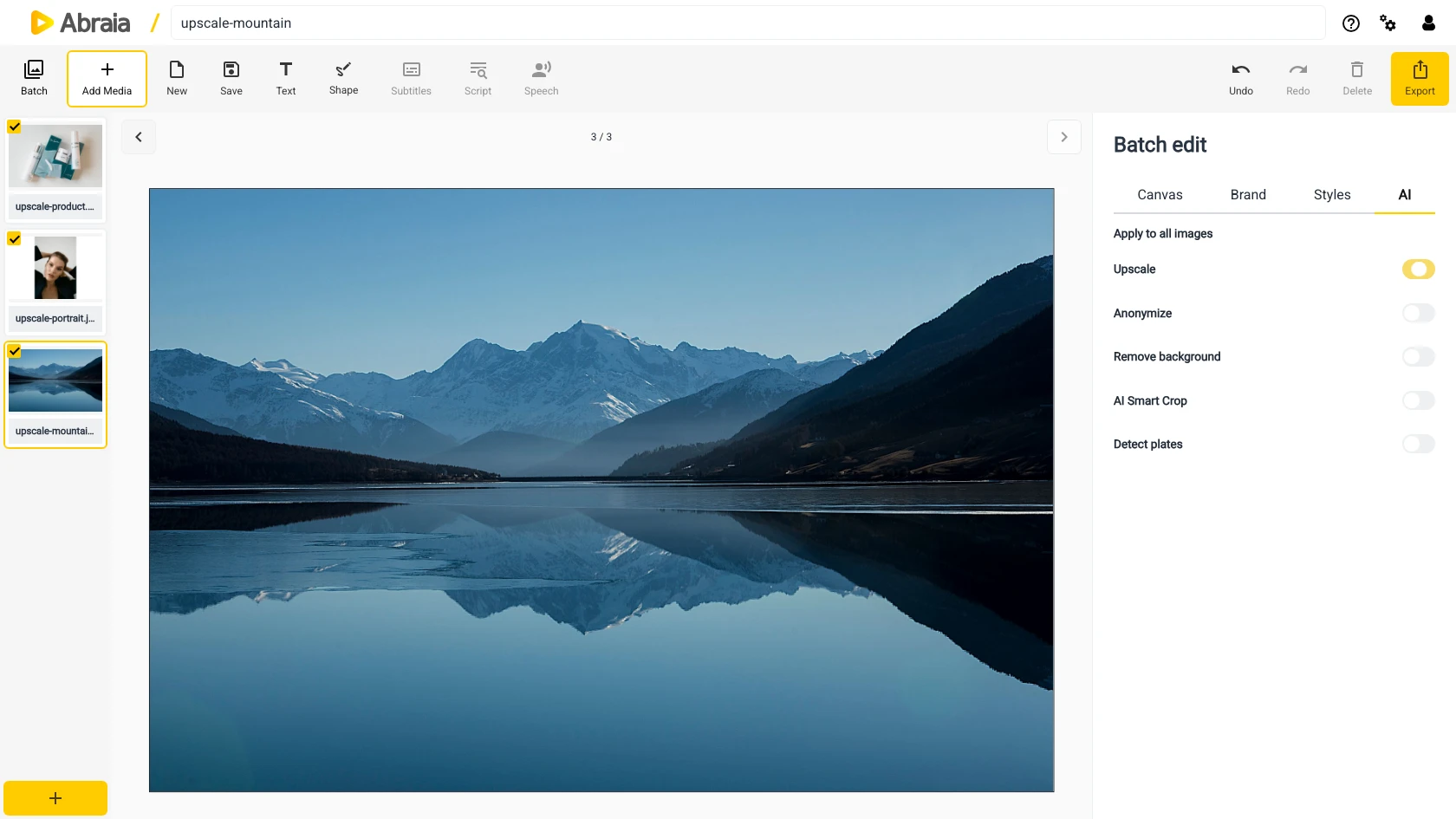
Select a set of photos, switch on Upscale in batch AI options, and prepare each image for a larger placement.
Upscale images in batchAI upscaling · Separate image outputs · Review the batch
MORE ROOM FOR YOUR PHOTOS
Use the same AI upscaling option across selected photos, then check the results before sharing or exporting.
Prepare a set of product photos for larger cards and storefront layouts.
Upscale selected images together before placing them in larger marketing layouts.
Give smaller source images an AI-assisted resolution boost, then inspect fine texture and edges.
ONE BATCH WORKFLOW
Batch mode keeps the source images separate while applying the same AI upscaling choice to the selected set.
Add the images you want to process, then open Batch edit and choose the AI tab.
Switch on Upscale to include AI resolution enhancement for the selected images.
Inspect each result separately and look closely at text, edges, and fine textures.
For shared canvas dimensions across a set, see resize multiple images. To change which area is visible, use batch image cropping.
COMMON QUESTIONS
Yes. Enable it in Batch edit under AI options to include the selected images in the same processing run.
AI can reconstruct visible texture, but it cannot guarantee recovery of information that was not captured. Review results before use.
No. Each source remains a separate image output.
Yes. Set the canvas crop in batch controls, then review the framing for each image.