Fade the picture
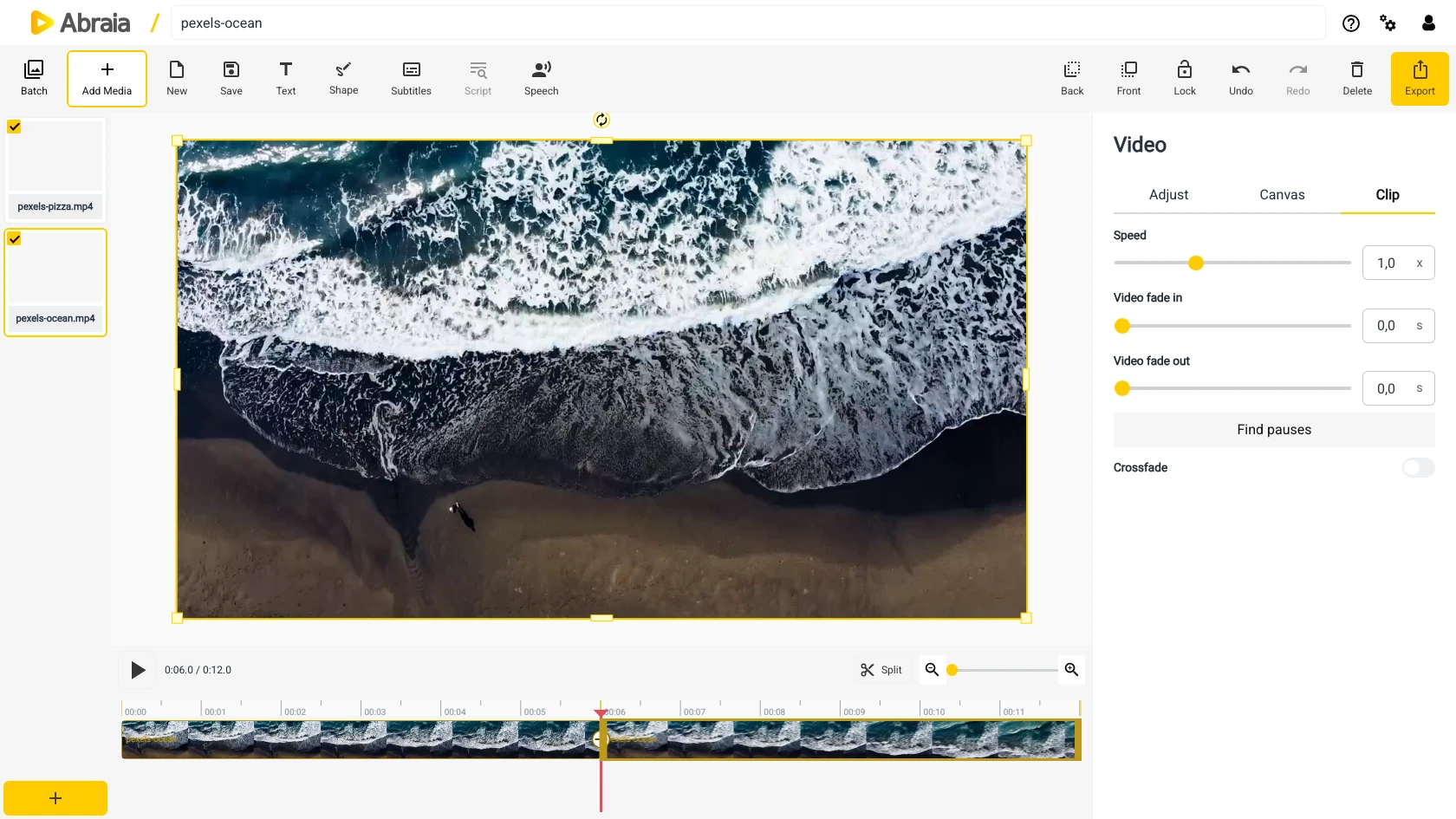
Set a video fade in or out on a selected clip.
VIDEO AND AUDIO FADES
Soften a clip’s start or finish with video fades, audio fades, or both.
Fade video and audioVideo fade controls · Audio fade controls · Timeline preview
CONTROL THE OPENING AND ENDING
Use a video fade to bring the picture in from black or let it fade away. Use audio fades separately to smooth the soundtrack or avoid abrupt sound at a cut.
Set a video fade in or out on a selected clip.
Adjust audio fade in and fade out separately from the picture.
Preview the beginning and end to confirm the fade feels natural.
CLIP CONTROLS
Video and audio fades have separate controls, so you can fade the image while keeping sound steady, or soften the sound without changing the picture.
Choose the video or audio element you want to adjust.
Use the Clip or Audio controls to set the fade in or out.
Check the opening and ending before exporting.
Add a soundtrack and fade its start or finish.
COMMON QUESTIONS
Yes. Use Clip controls for the picture and Audio controls for sound.
Yes. Set each duration independently.
Yes. Review the selected clips and adjust each fade as needed.