Face
Keep a speaker's face in view through interviews, lessons, or direct-to-camera clips.
AUTO VIDEO REFRAMING
Reframe a video for a new canvas and let Abraia follow a face, person, or object as the shot changes. Review the crop, then fine-tune it in the editor.
Reframe a videoSubject tracking · Portrait, square and landscape · Manual framing
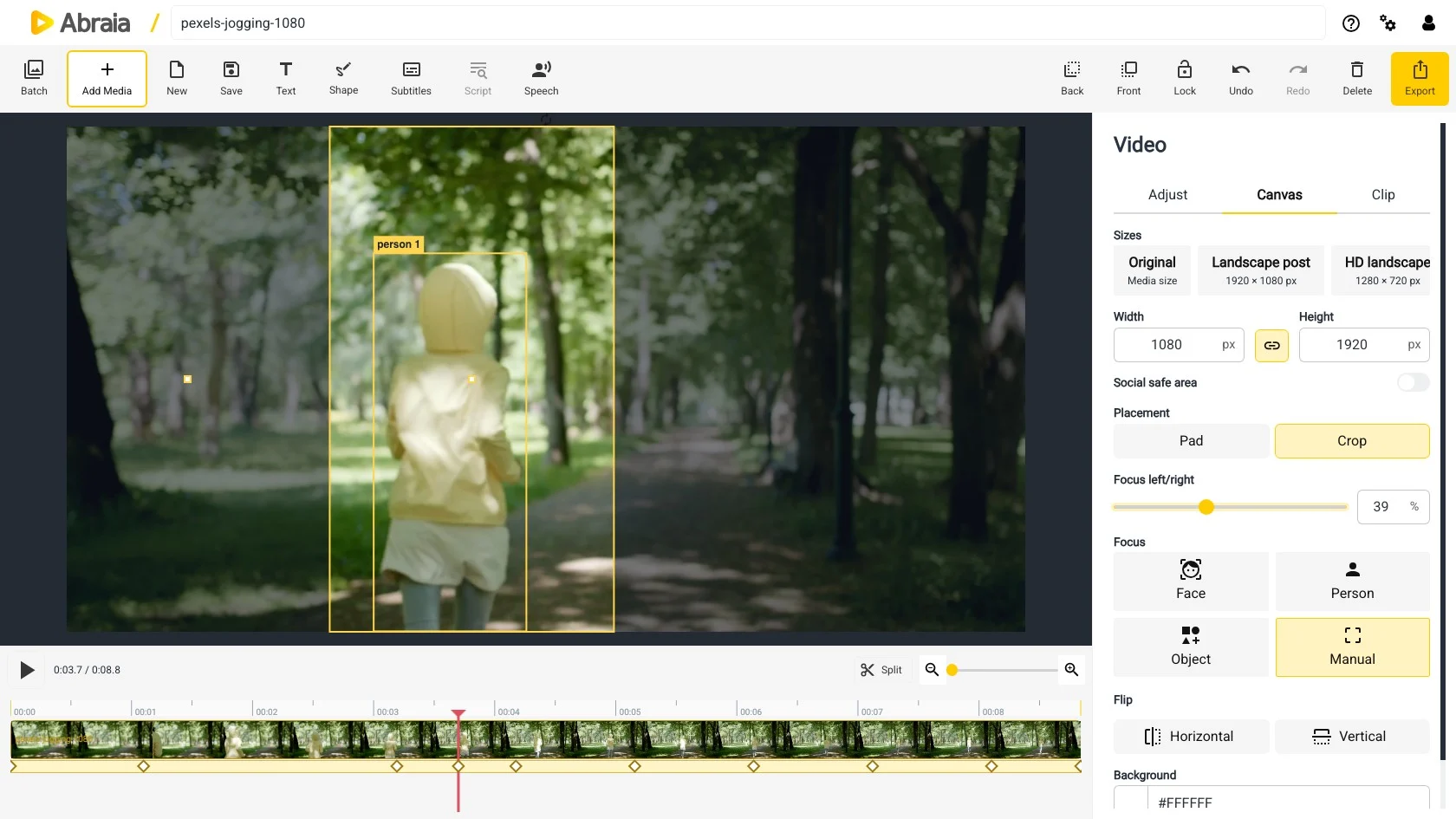
CHOOSE WHAT TO FOLLOW
Abraia analyzes the selected video and creates a moving crop for the current canvas. Choose what should stay in view, then review the framing in context.
Keep a speaker's face in view through interviews, lessons, or direct-to-camera clips.
Follow a person across a wider shot while preserving space for movement and gestures.
Track a selected object when it carries the action, from a product demo to a moving subject.
Set the crop yourself when you want a deliberate composition or the shot needs a correction.
REFRAMING AND RESIZING
A fixed crop can cut off a subject after they move. Reframing adjusts the crop over time so the chosen focus can stay in view.
Turn a wide video into a vertical version while keeping the selected subject inside the narrower frame.
Use face or person focus when a presenter moves across the original shot.
Check the framing from start to finish and use manual focus when you need a different composition.
Use video resizing to change dimensions or aspect ratio with a fixed frame, and video cropping for a static crop. For transcript-based excerpts with captions, see social video clips.
COMMON QUESTIONS
It analyzes the selected video and creates a crop path that adjusts over time to follow the chosen focus.
Choose Face, Person, or Object. Manual focus is available when you want to position the crop yourself.
Yes. Set the canvas to a portrait, square, landscape, or custom size, then reframe the video for that canvas.
Results depend on the footage and selected subject. Review the crop across the full clip and adjust the focus when needed.