Connect adjacent clips
Add a crossfade where one video clip leads into another.
VIDEO TRANSITION
Blend adjacent shots with a simple crossfade and adjust the transition timing in your video edit.
Add a crossfadeClip-to-clip transition · Timeline preview · MP4 export
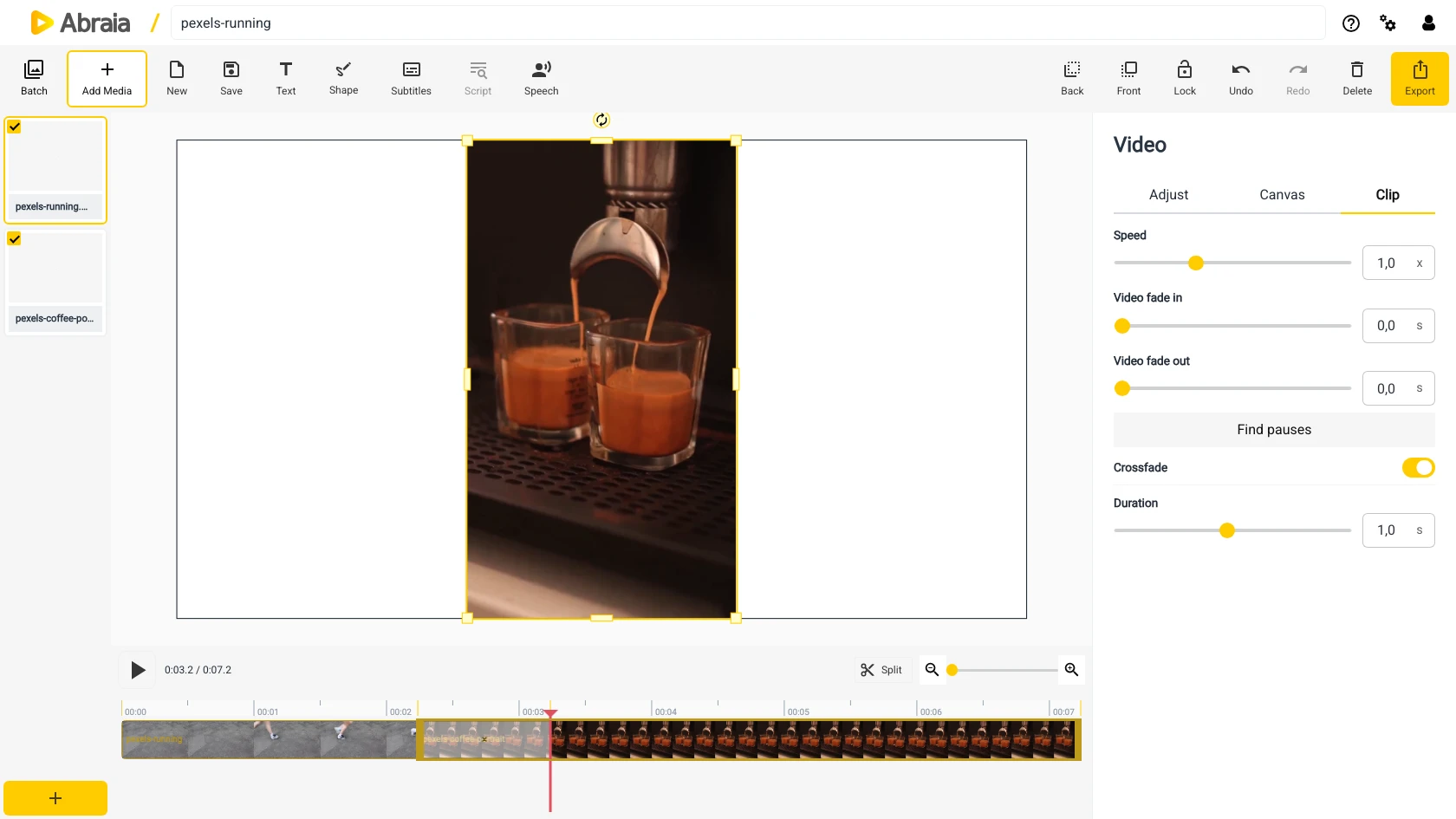
SMOOTHER SCENE CHANGES
Use a crossfade when a direct cut feels abrupt or when you want to signal a change in time or place. Apply it between neighboring clips and preview the overlap in context.
Add a crossfade where one video clip leads into another.
Use the duration control to avoid distracting from the footage.
Check the transition with the shots before and after it.
TIMELINE TRANSITIONS
The transition belongs to the clip sequence, so check the timing of both neighboring shots. A short transition can soften the change without slowing the edit.
Place two or more video clips in order on the timeline.
Select the following clip and turn on Crossfade.
Review the change between shots and export the video.
Combine clips into one sequence or refine the cut points.
COMMON QUESTIONS
Yes. Enable Crossfade on a clip that follows another video clip.
Yes. Adjust its duration in the clip controls.
Export the edited timeline as a new video.