WebP for web delivery
Use a modern web format when your site or publishing workflow supports it.
BATCH IMAGE CONVERSION
Choose JPEG, PNG, or WebP, set output quality, and export selected images together.
Convert images in the editorJPEG · PNG · WebP · Batch quality settings
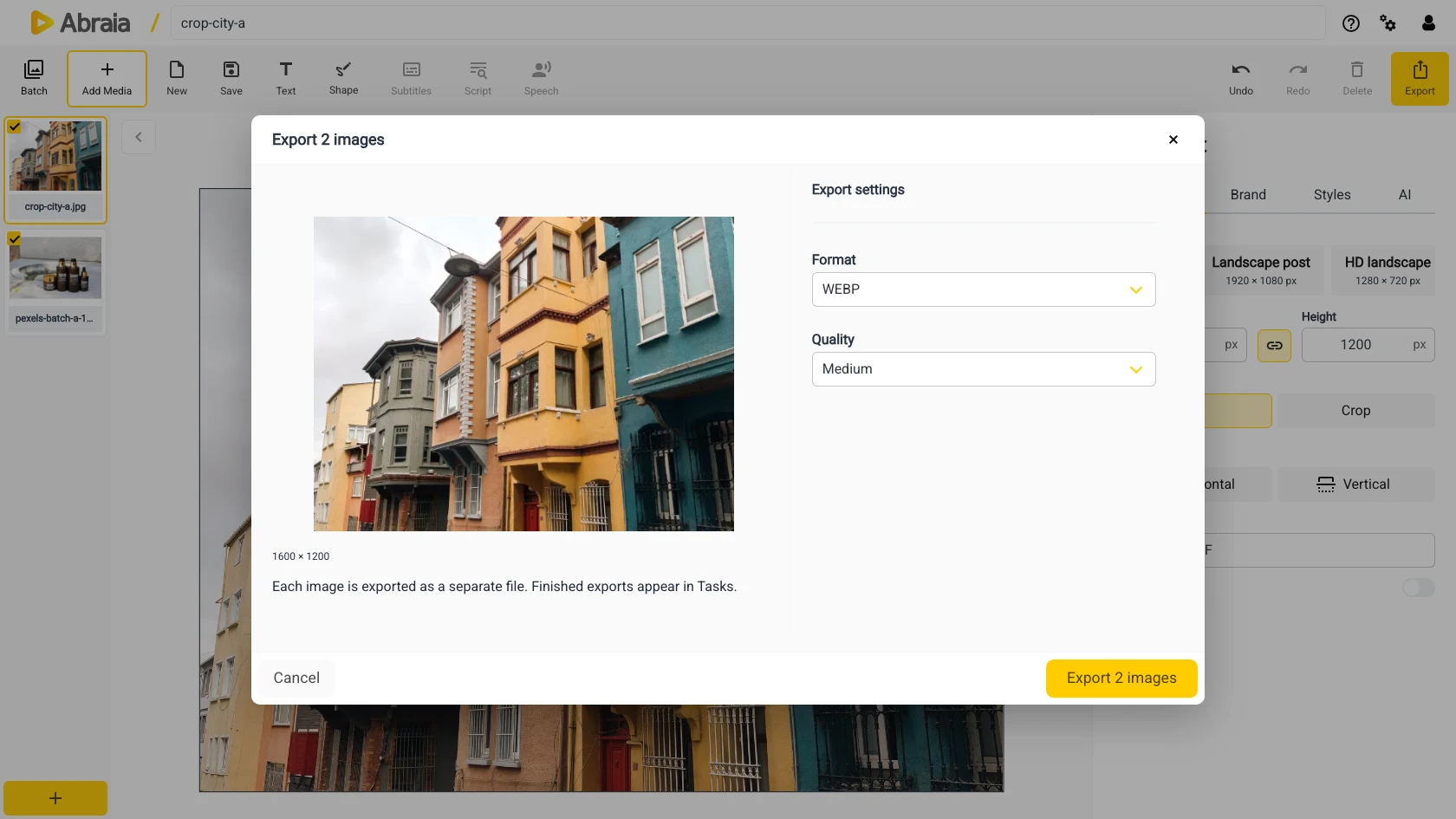
THE RIGHT FORMAT FOR THE SET
Convert product photos, campaign assets, or editorial images together when they need the same delivery format.
Use a modern web format when your site or publishing workflow supports it.
Choose JPEG for photographic images and broad compatibility.
Export graphics that need crisp edges or transparency as PNG.
QUALITY AND FILE SIZE
Set one quality level for the selected images. Higher quality keeps more detail; lower quality can reduce output size.
Add the files that need the same output format and quality.
Choose JPEG, PNG, or WebP, then select High, Medium, or Low quality.
Process the selected images together and review the finished files.
For exact image dimensions, see batch image resizing. For shared edits beyond export settings, see batch image editing.
COMMON QUESTIONS
Yes. Select multiple images and export them using the same format and quality settings.
Choose JPEG, PNG, or WebP in the image export settings.
No. The quality setting controls compression; it does not guarantee a specific file size.
Yes. Set the canvas size before exporting, or use the dedicated batch resize workflow.