Show the steps
Capture a browser, app, or desktop workflow while you demonstrate it.
SCREEN + WEBCAM RECORDER
Capture a walkthrough or presentation with a camera overlay, then refine the recording on an editable timeline.
Record screen and webcamScreen capture · Camera picture-in-picture · Separate tracks
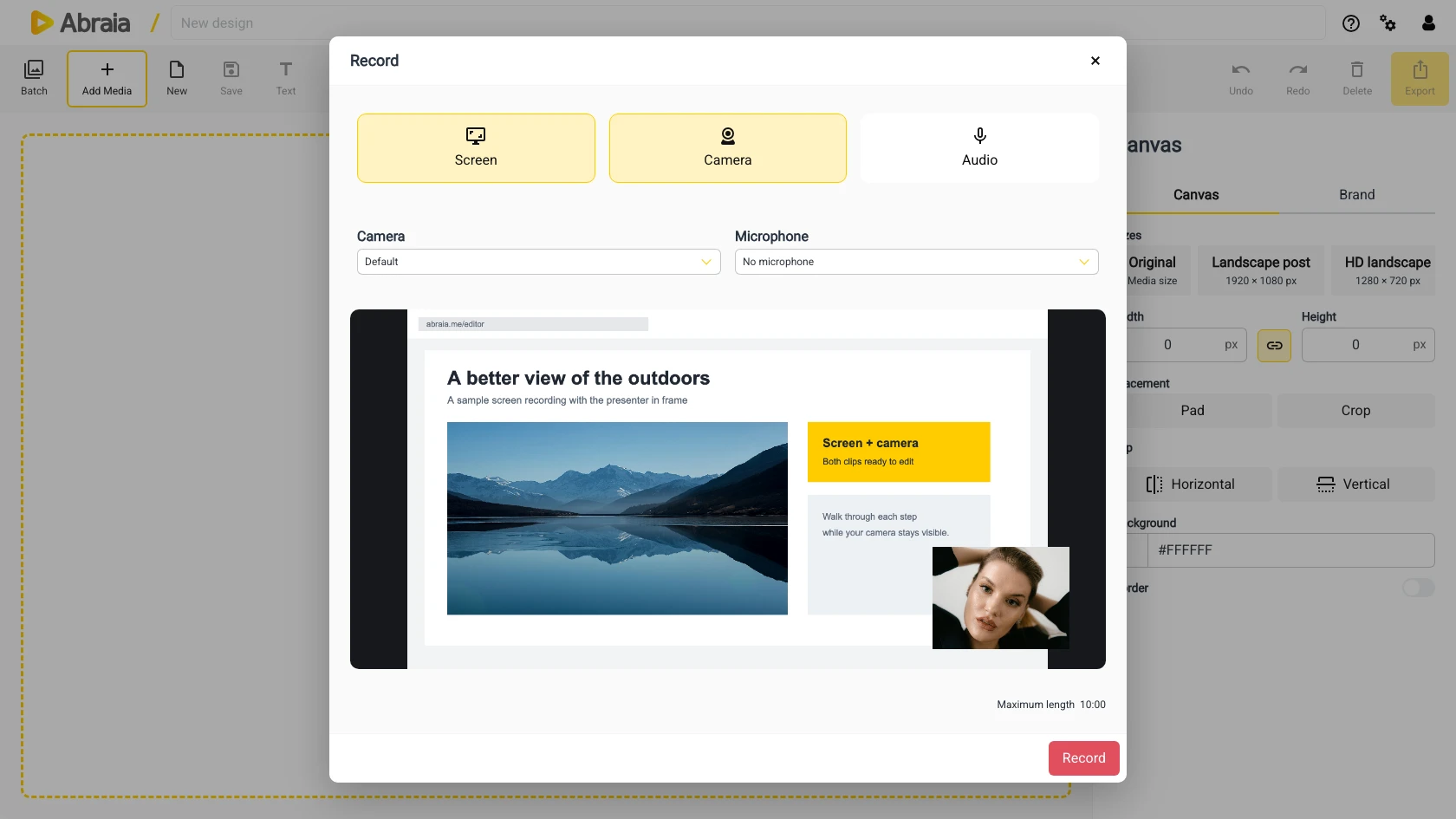
CAPTURE THE DEMO, NOT JUST THE SCREEN
Record a product walkthrough, lesson, or presentation with your webcam layered over the screen recording. The camera and screen remain separate clips for editing.
Capture a browser, app, or desktop workflow while you demonstrate it.
Include a webcam view so viewers can follow the presenter as well as the screen.
Continue with separate screen and camera clips on the editor timeline.
SCREEN + WEBCAM WORKFLOW
Choose your screen and camera sources, check the preview, and record. In the editor, the camera clip can sit as picture-in-picture over the screen clip.
Select Screen, Camera, and an optional microphone.
Confirm the screen and camera feeds before recording.
Trim the clips and adjust the camera overlay on the timeline.
Add titles or subtitles after recording. For a webcam-only or audio recording, see browser video recording.
COMMON QUESTIONS
Yes. Select Screen and Camera in the recording dialog, then check both previews.
The screen and camera clips stay separate. The editor places the camera clip as picture-in-picture over the screen.
Yes. Choose a microphone input when you set up the recording.
Yes. Trim and arrange the captured clips on the timeline.