Product photos
Prepare product images for catalogs, listings, and promotional layouts without their original surroundings.
BACKGROUND REMOVAL
Create a clean cutout from product, portrait, and everyday photos, then continue editing on the same canvas.
Remove a photo backgroundAI subject cutout · Transparent PNG · Continue editing
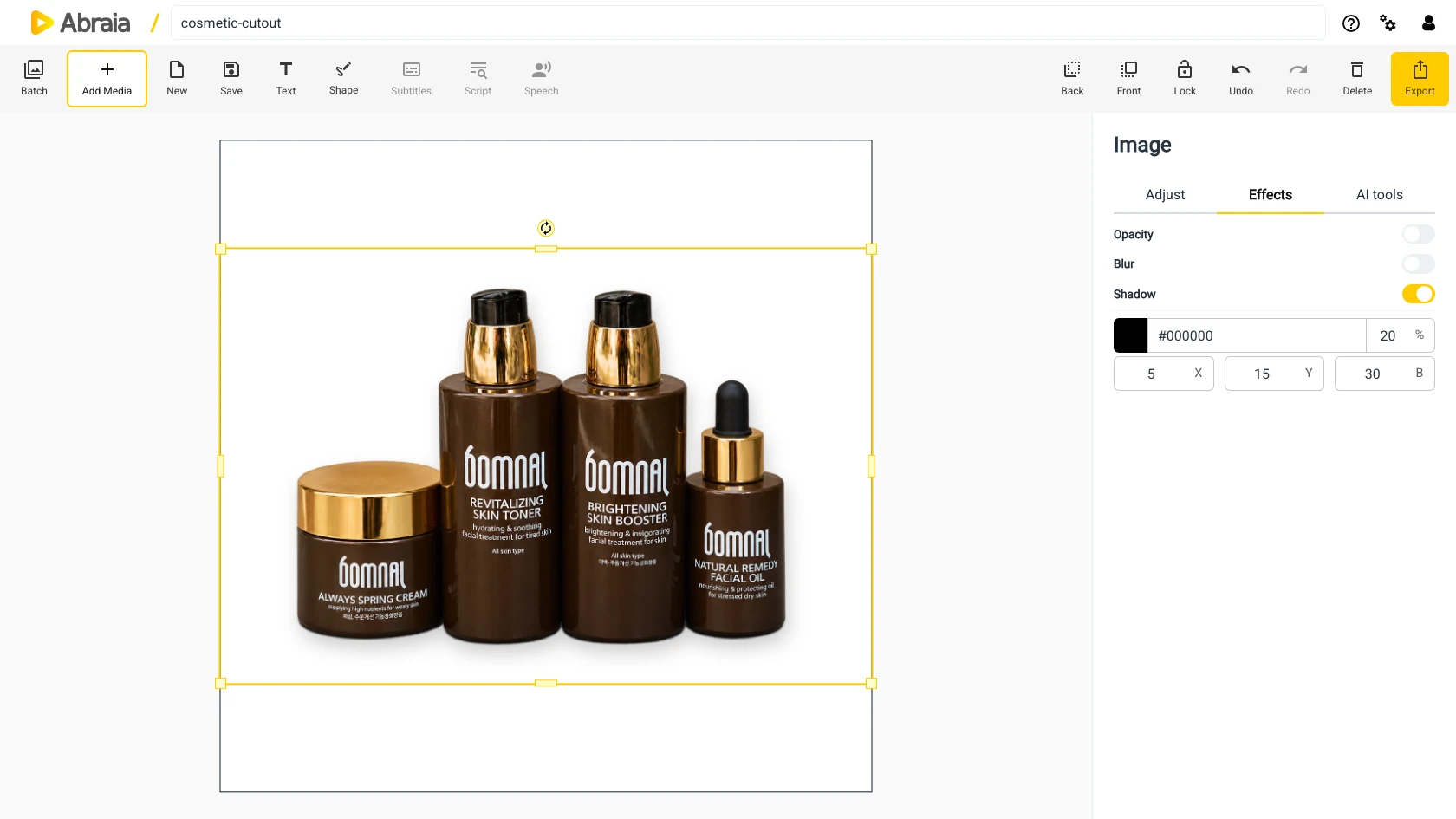
A CLEAN CUTOUT
Remove the original scene when you need the subject to stand on its own or fit a new composition.
Prepare product images for catalogs, listings, and promotional layouts without their original surroundings.
Clear a busy room or setting from portraits when the person should remain the focus.
Use the cutout on a transparent canvas, or place it into a design with a different background.
FROM CUTOUT TO COMPOSITION
Keep the subject ready for a transparent export or continue building the image in the editor.
Export a PNG cutout with a transparent background for layouts and product assets.
Continue editing on the canvas and combine the subject with a different image or color.
Use the AI options in batch editing to remove backgrounds from a group of images.
To soften the existing scene, try background blur. To remove one selected distraction, use the object eraser.
COMMON QUESTIONS
Yes. Enable Remove background in the batch editor's AI options to apply it to a group.
Yes. Export the PNG cutout with its transparent background for use in layouts and product assets.
Clear subjects against distinct surroundings are easier to separate. Fine hair, glass, and soft shadows may need a closer review.
Yes. Continue on the same canvas to place the subject in a new composition or make other edits.