Loose objects
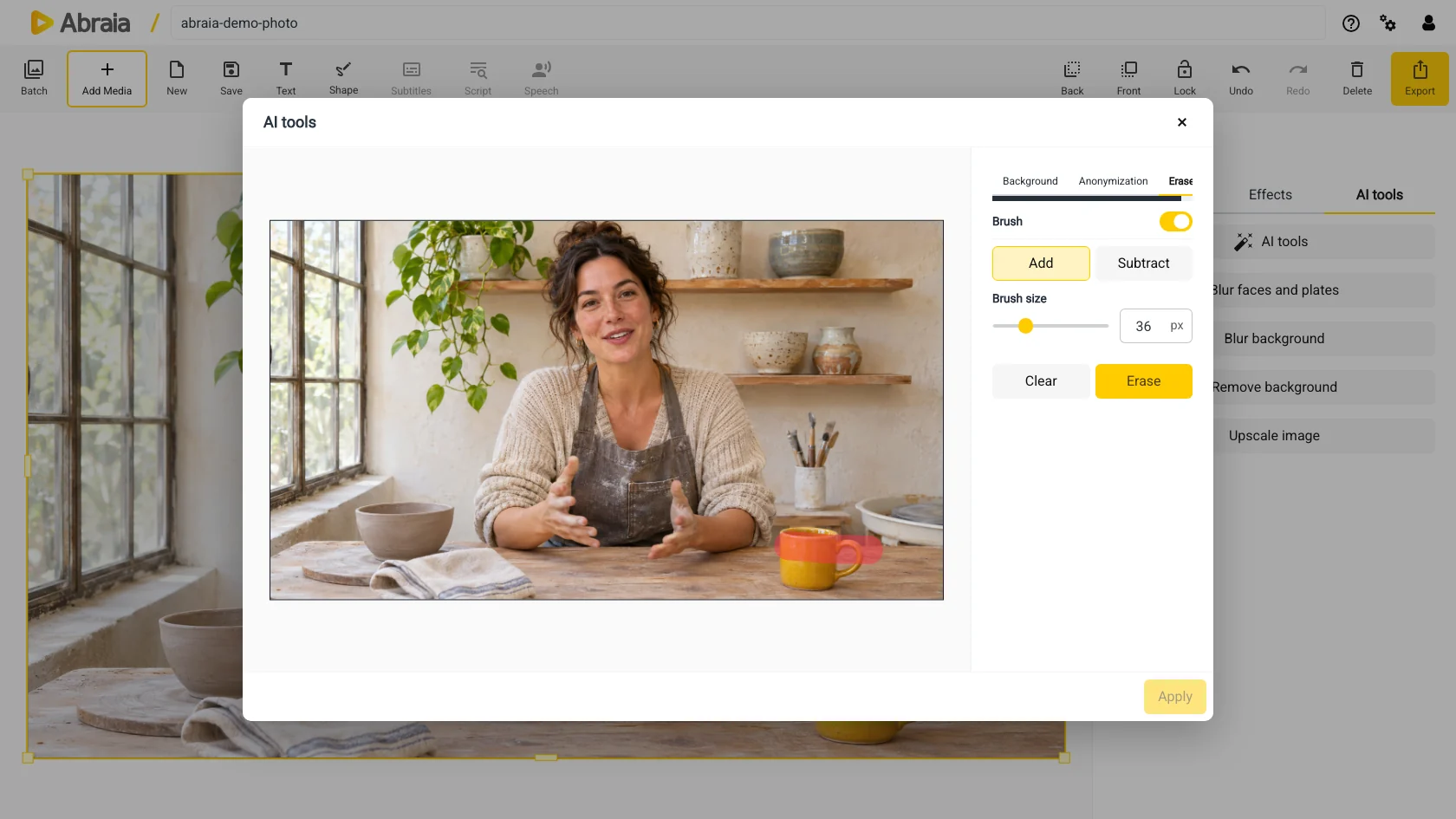
Remove packaging, cups, or signs that pull attention from the main subject.
AI OBJECT ERASER
Clear a passerby, stray prop, or patch of clutter. Select the area, refine it with the brush, and check the fill before you apply it.
Open the AI eraserObject selection · Add or subtract with Brush · Preview before applying
GOOD CANDIDATES
A clean fill depends on the detail around the selection. Smaller distractions and simple backgrounds give the editor more to work with.
Remove packaging, cups, or signs that pull attention from the main subject.
Clear a passerby or stray item when nearby scene detail can fill the gap.
Add missed edges or subtract nearby details you want to keep before erasing.
WHAT AFFECTS THE FILL
The tool replaces a selected area in a still image. Nearby detail gives you a better sense of what to expect from the result.
Plain walls, skies, and surfaces give the fill more consistent context than dense patterns or fine texture.
Text, tiles, fences, and straight boundaries are harder to reconstruct cleanly when they cross the selected area.
They can be included with the object, but removing them may leave a larger area for the fill to recreate.
For other photo fixes, see background blur or face blurring.
COMMON QUESTIONS
Yes. The result depends on the background visible around them.
Use Brush in Subtract mode to remove protected areas from the selection.
The preview changes the selected area. Apply it to continue editing on the main canvas.
No. The AI eraser removes objects from still images, not across video frames.